1. Share your iPhone screen with a person
This is the built-in one. In a FaceTime call, tap the SharePlay button and choose Share My Screen. The other person sees whatever is on your iPhone, live. Since iOS 18 they can also draw on your screen to point at things, or request remote control, which you approve on your end. It's the right tool for walking a family member through a setting or getting help with an app.
2. Mirror your iPhone to a Mac or TV
Open Control Center, tap Screen Mirroring, and pick an Apple TV, an AirPlay television, or a Mac running macOS Monterey or later. Your iPhone appears on the big screen. Useful for showing photos or a demo to a room. Note the direction: this puts the phone on the Mac, not the Mac on the phone.
3. See your Mac's screen on your iPhone
This is the direction Apple doesn't cover. The macOS Screen Sharing app is Mac-to-Mac only, and there is no Apple Remote Desktop for iPhone. You have two kinds of third-party option.
- Whole-desktop remote apps such as Screens or Jump Desktop mirror your entire Mac display to the phone. Everything is there, shrunk to six inches. We compare them in the iPhone-to-Mac remote desktop roundup.
- Single-app sharing with Apperture: a free Mac host captures one app's window and streams it to your iPhone or iPad, sized to the device. You tap, scroll, and type into that Mac app directly. Nothing else on your desktop is shared, which also makes it the private choice when you only meant to show one thing.
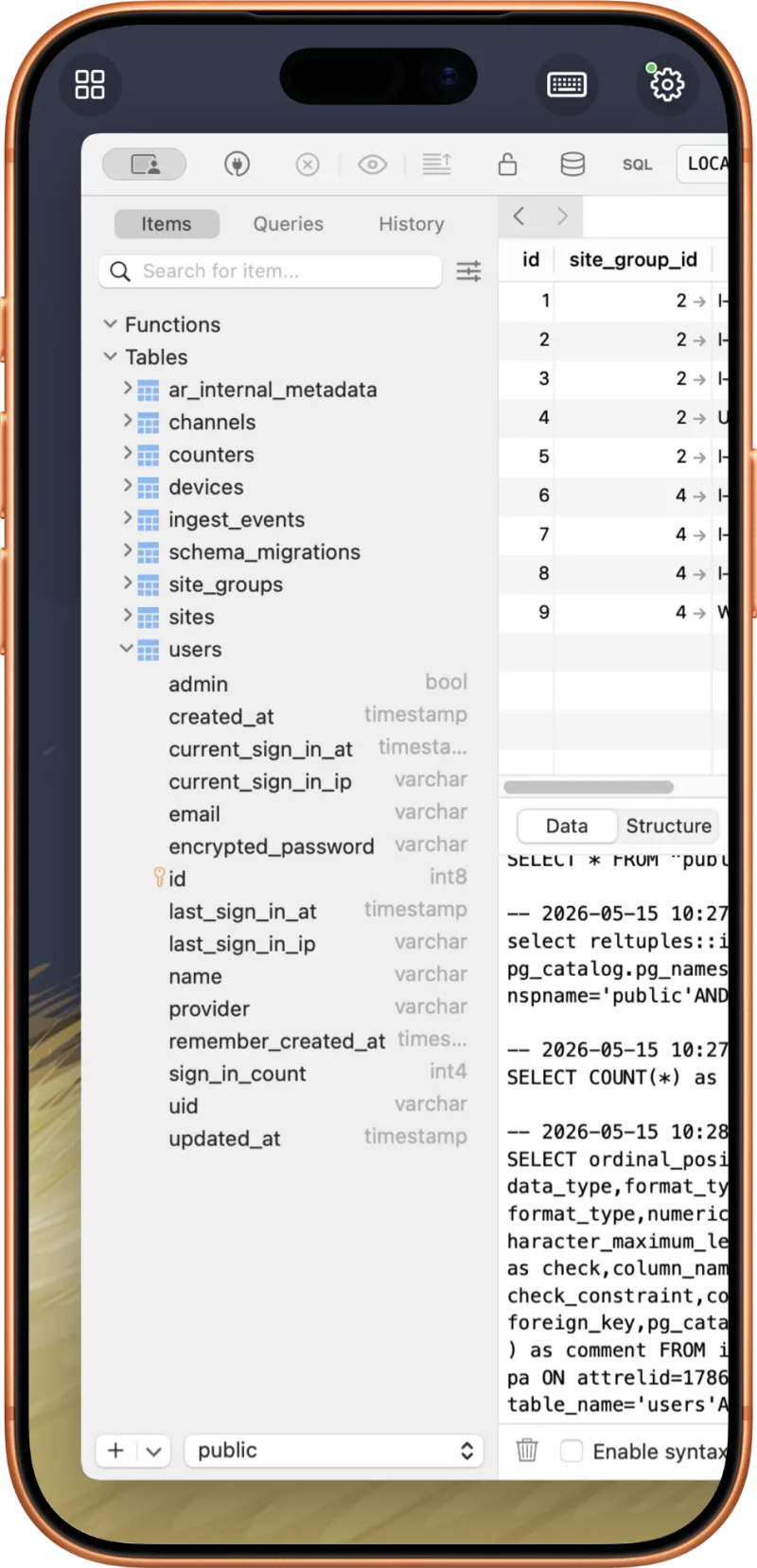
Apperture's stream is peer-to-peer on your own network and encrypted per session, with no cloud relay. From outside the house it works over a private VPN like Tailscale. More on the approach in Share your Mac screen to an iPhone, and setup steps in the five-minute guide.
Which one do you want?
| You want to… | Use | Built in? |
|---|---|---|
| Show your iPhone screen to someone remotely | SharePlay in FaceTime | Yes |
| Let someone control your iPhone to help you | FaceTime remote control (iOS 18+) | Yes |
| Put your iPhone on a TV or Mac | AirPlay Screen Mirroring | Yes |
| Record your iPhone screen | Control Center Screen Recording | Yes |
| See and control your whole Mac from iPhone | Screens, Jump Desktop, or another VNC client | No |
| See and control one Mac app from iPhone | Apperture | No |
Common questions
How do I share my iPhone screen with someone?
Start a FaceTime call, open the SharePlay menu, and tap Share My Screen. The other person sees your iPhone screen live. On iOS 18 and later they can also ask to draw on it or, with your approval, control it remotely.
How do I share my iPhone screen to my Mac?
Use AirPlay. Open Control Center on the iPhone, tap Screen Mirroring, and pick your Mac. This requires macOS Monterey or later and both devices on the same Wi-Fi network.
How do I see my Mac's screen on my iPhone?
Apple has no built-in way to do this. You need a third-party app. Full remote desktop apps like Screens mirror the whole Mac desktop over VNC. Apperture streams one Mac app's window to your iPhone with touch and keyboard control, peer-to-peer on your network.
Is iPhone screen sharing private?
SharePlay and AirPlay are end-to-end encrypted by Apple. When sharing a Mac to an iPhone, it depends on the app: many route through the vendor's cloud. Apperture never does; it streams directly between your own devices.