What Apple actually ships
- Apple Remote Desktop is a $79.99 Mac App Store app for administrators managing fleets of Macs: remote install, scripts, reports, and screen control. It runs on a Mac and only connects to Macs. There is no iPhone or iPad version.
- Screen Sharing is the free app built into every Mac. It lets one Mac view and control another. It also has no iOS client.
- On iPhone, Apple's screen-sharing features go the other direction: SharePlay in FaceTime shares your iPhone's screen with another person, and AirPlay mirrors your iPhone to a Mac or TV. Neither shows your Mac on your phone.
So "Apple Remote Desktop from iPhone" is a gap in Apple's lineup, not a setting you've missed. Every way to see your Mac on your phone comes from a third party.
Option one: a full remote desktop client
Because Screen Sharing speaks VNC, iOS apps like Screens and Jump Desktop can connect to it and show your whole desktop. They're polished, and they're the right tool when you need the whole machine. The trade-off is scale: a 27-inch desktop shrunk to a phone means pinching, panning, and steering a tiny cursor by trackpad gesture. We compare all seven iPhone-to-Mac apps in the remote desktop roundup.
Option two: stream one app instead of the desktop
Apperture is built for the case Apple's tools don't cover: an iPhone in your hand and one Mac app you want to see. A free host app on your Mac captures the window you choose and streams it to the Apperture iOS app, sized to your phone. You tap, scroll, and type into the Mac app directly. Menus and the clipboard work too.
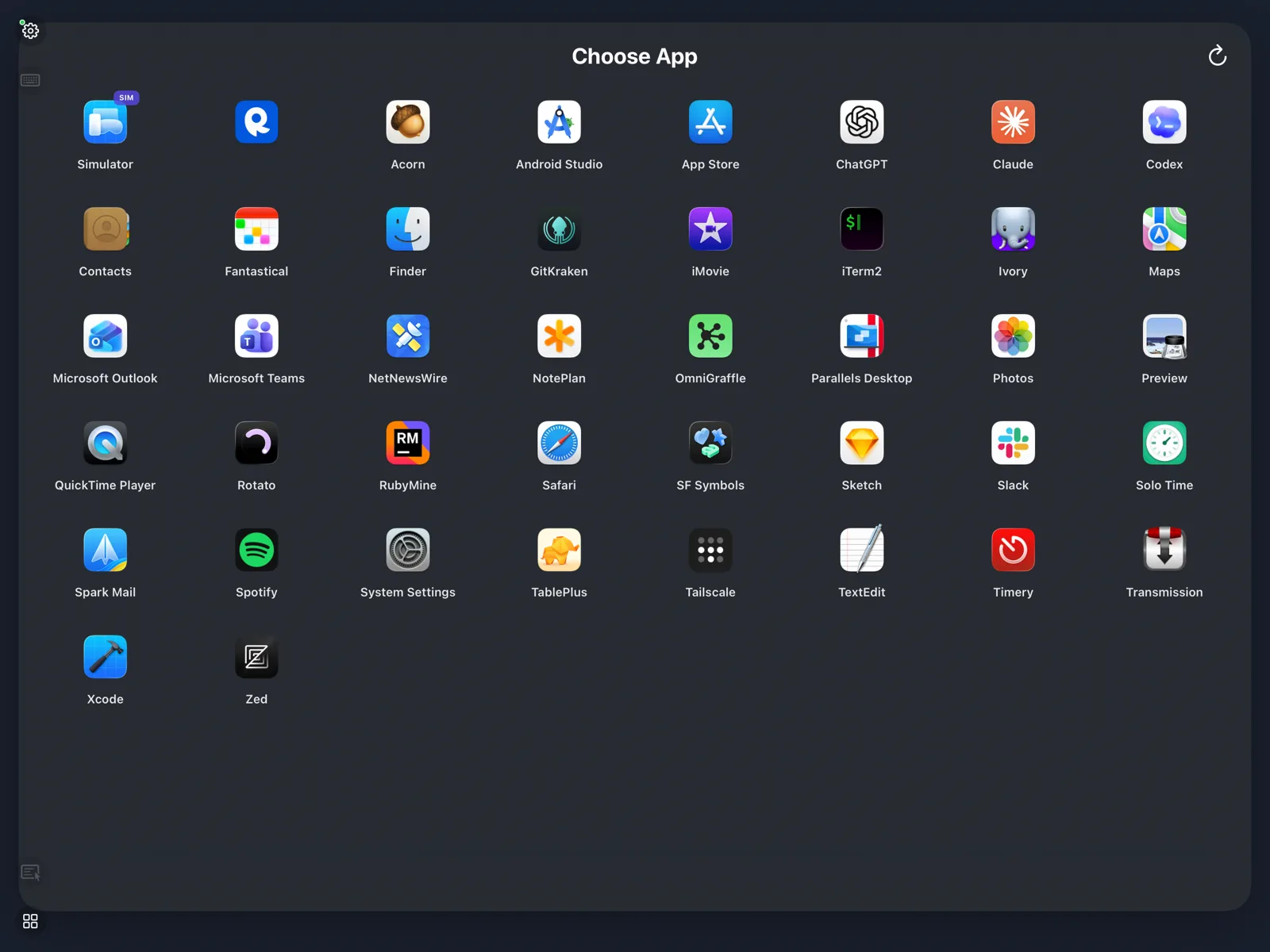
Like Apple's own tools, nothing goes through a cloud service. The connection is peer-to-peer on your private network, encrypted per session, and paired with a QR code that the Mac's owner has to approve. From outside the house, a private VPN such as Tailscale gets you the same connection. See the security overview for the full model.
Set it up in about five minutes
- Install the free Apperture host on your Mac and grant Screen Recording and Accessibility when asked.
- Install Apperture on your iPhone from the App Store.
- Choose Pair Phone on the Mac, scan the QR code with your phone, approve the device.
- Pick the app to stream.
The detailed walkthrough is in How to view a Mac app on your iPhone.
Common questions
Is there an Apple Remote Desktop app for iPhone?
No. Apple Remote Desktop is a Mac-only administration tool sold on the Mac App Store. Apple has never shipped an iOS client for it, and there is no iPhone version of the macOS Screen Sharing app either.
How do I remotely access my Mac from my iPhone then?
Use a third-party app. Full-desktop clients like Screens or Jump Desktop connect over VNC. Apperture takes a different approach: a free Mac host streams one app's window to the Apperture iOS app, peer-to-peer, with touch and keyboard control.
Can I use Apple's Screen Sharing with an iPhone?
Not directly. macOS Screen Sharing is Mac-to-Mac. Because it uses VNC under the hood, a third-party VNC client on iPhone can connect to it, but you'll be steering a full desktop with a virtual cursor on a phone screen.
Does the Apple Remote Desktop iPhone alternative cost anything?
Apperture's Mac host is free, and the iOS app includes your first 15 connections with full functionality at no charge. Apperture Pro is an in-app purchase after that.