
Browse Mac apps for iPhone and iPad
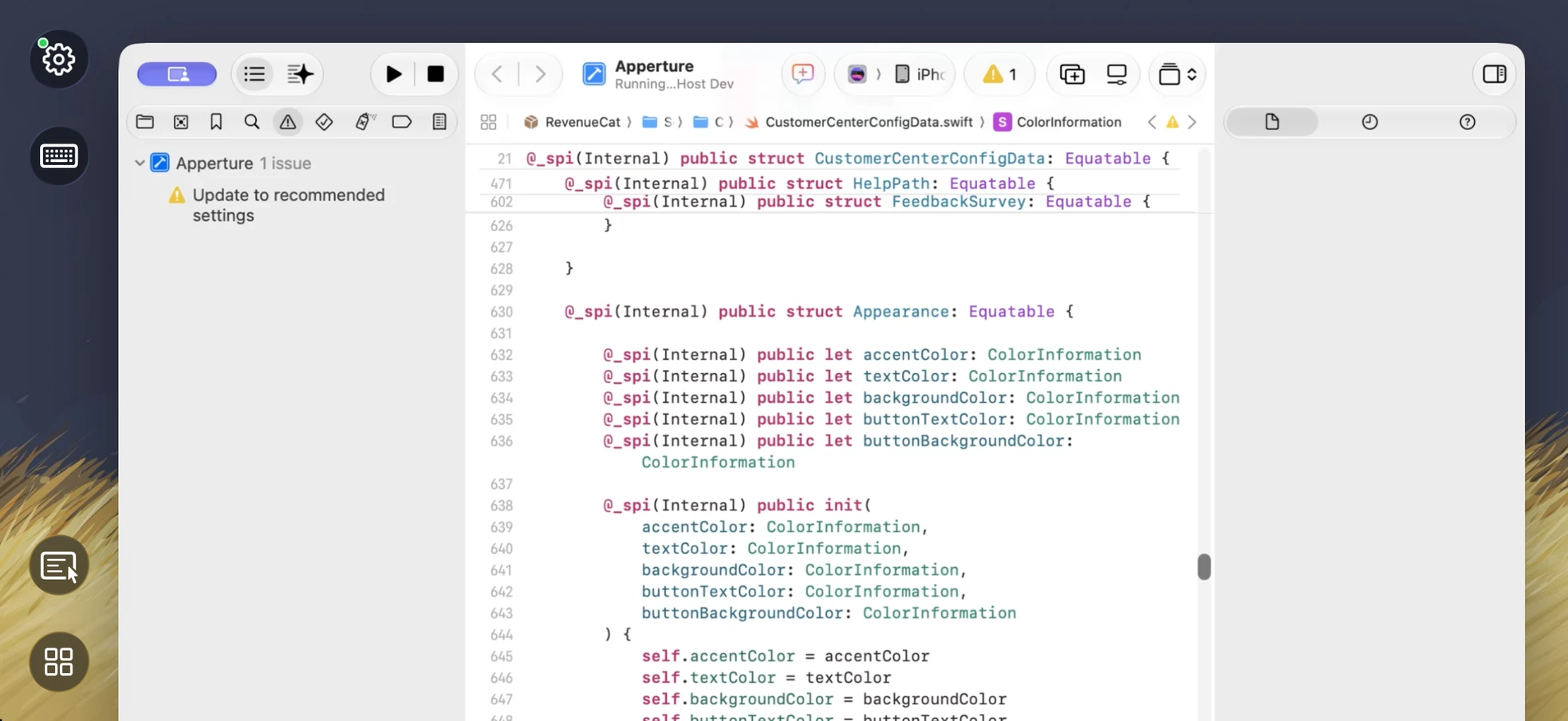
Check the project from your phone
Keep the same project, SDKs, signing setup, and build environment on your Mac. Stream the Xcode window when you want to read an error or make a small edit away from the desk.
- Read source code in the Mac editor
- Check issues and build output
- Use remote keyboard input for a quick edit
Use Xcode on iPad
An iPad gives you more room to read source code, inspect the issue list, and check build output. The project, SDKs, and signing environment remain on your Mac. For a running app’s interface, select the Simulator window.
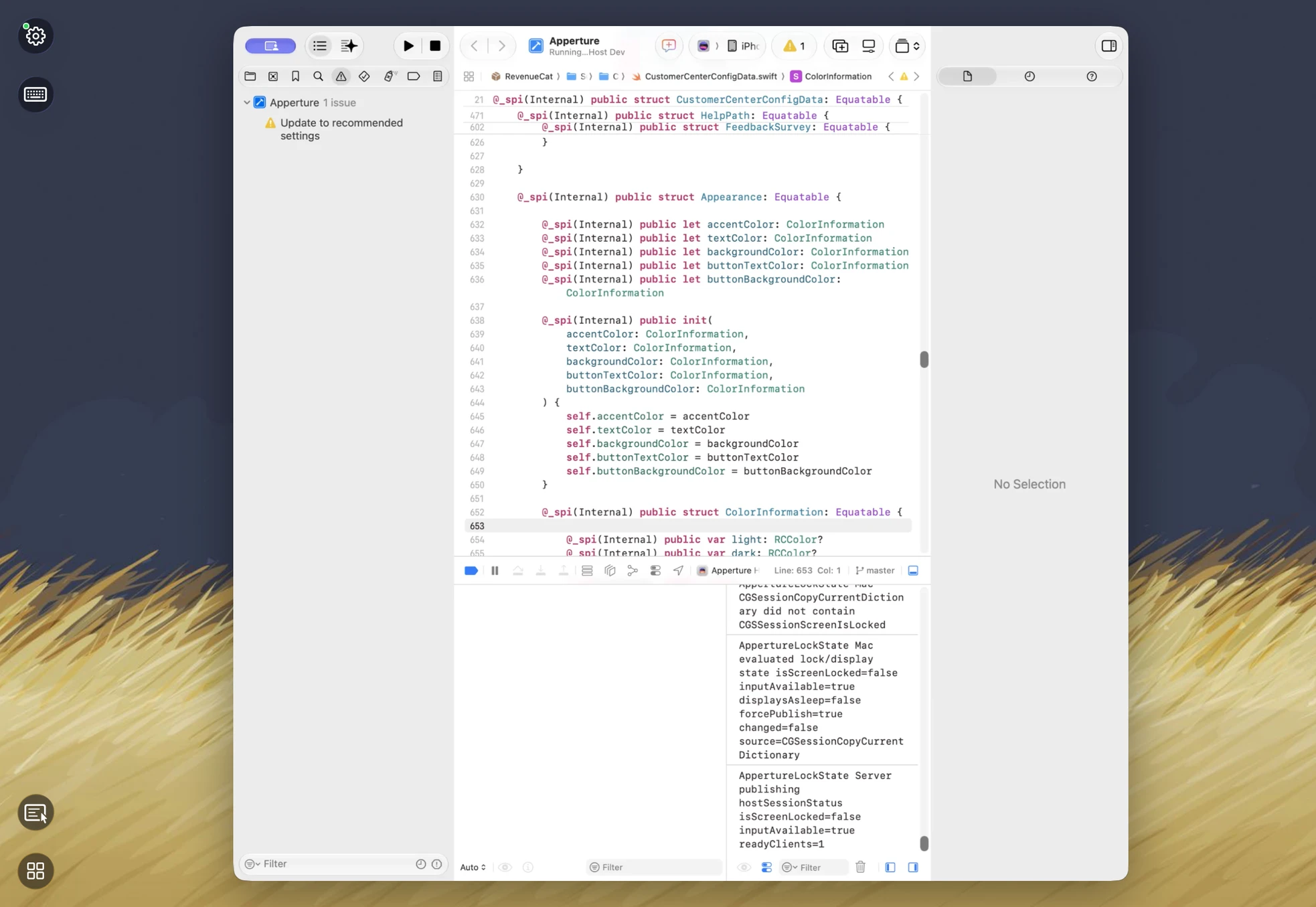
How to get Xcode on your iPhone or iPad
- Open Xcode on your Mac and install the free Apperture Mac host.
- Get Apperture on your iPhone or iPad, then pair with your Mac using its QR code.
- Connect to your Mac and choose the Xcode window. Use landscape orientation for more room.
Keep your Mac awake and on a network your iPhone or iPad can reach. Start on the same local network; for access away from home, see the Tailscale setup guide.
Can I use Xcode on my iPhone or iPad with Apperture?
Yes — by streaming Xcode from your Mac with Apperture. The desktop app runs on your Mac; your iPhone or iPad displays its window and sends remote input back. You need a reachable, awake Mac with Xcode installed, the free Apperture Mac host, and the Apperture app on your iPhone or iPad.
Apperture does not install Xcode or an iOS development environment on your iPhone or iPad. For testing an app's interface, select the Simulator window in Apperture instead of Xcode. Apple's Xcode resources.
Xcode is a trademark of its owner. Apperture is an independent app and is not affiliated with or endorsed by Xcode's developer.