
Browse Mac apps for iPhone and iPad
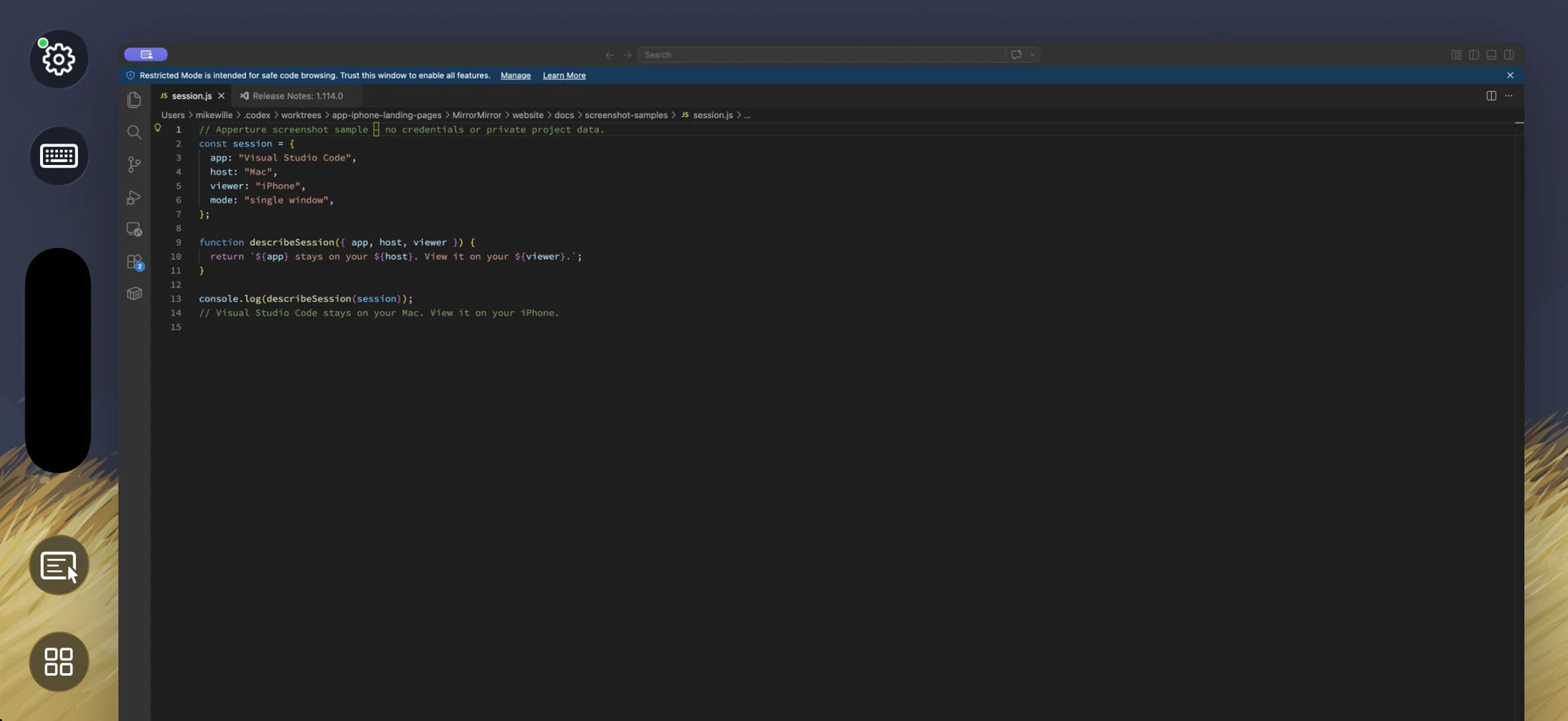
Keep your Mac workspace close
Read a file, check terminal output, or make a quick edit in the workspace already open on your Mac. Your existing tools and local environment stay where you set them up.
- Read files in your existing workspace
- Check an integrated terminal or running task
- Type a small change with remote keyboard input
Use Visual Studio Code on iPad
On iPad, more of the file and terminal output fit on screen. Apperture keeps you in the Mac workspace with its local tools and extensions. VS Code’s browser editor offers a separate workflow when you only need a web-based editor.
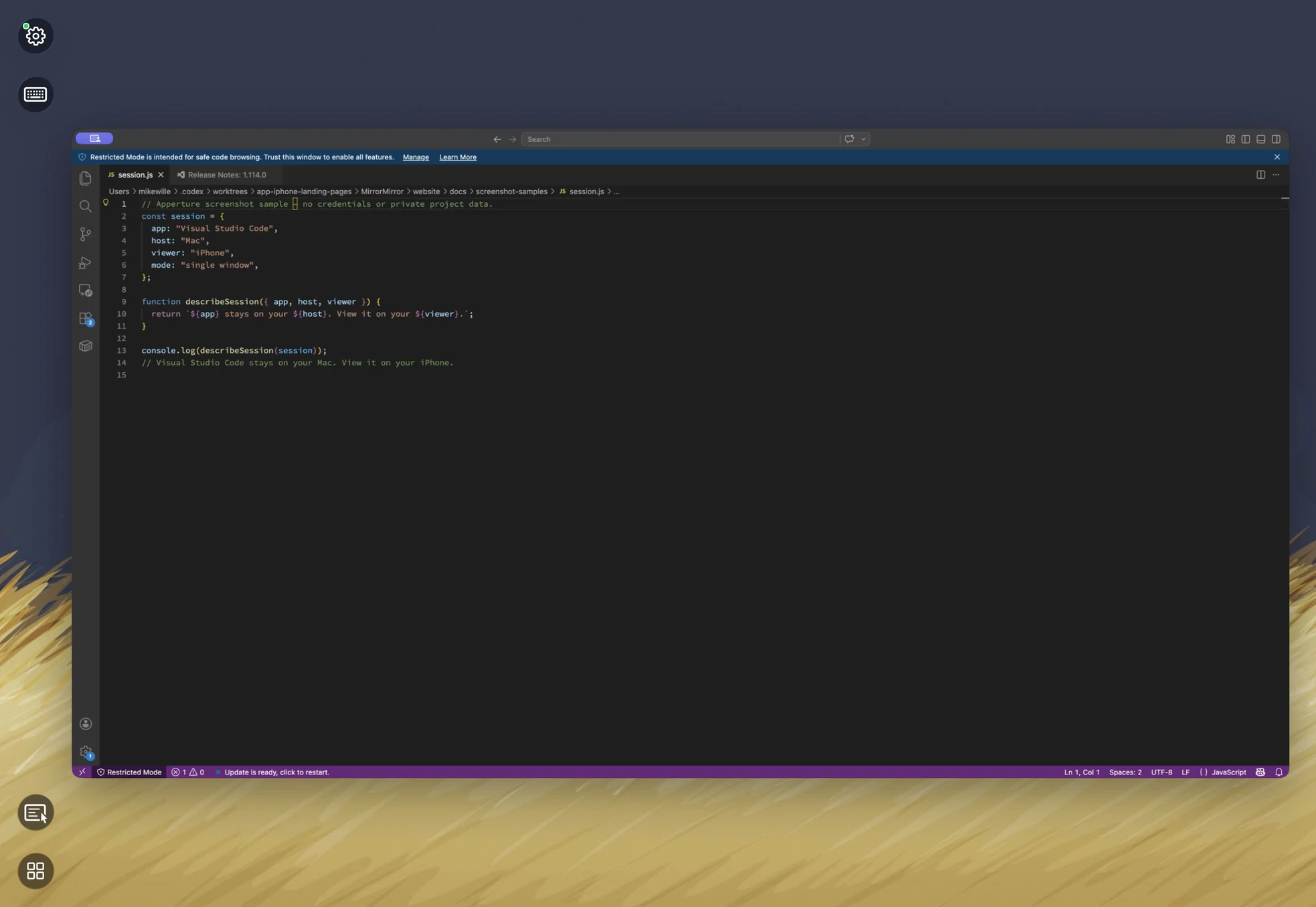
How to get Visual Studio Code on your iPhone or iPad
- Open Visual Studio Code on your Mac and install the free Apperture Mac host.
- Get Apperture on your iPhone or iPad, then pair with your Mac using its QR code.
- Connect to your Mac and choose the Visual Studio Code window. Use landscape orientation for more room.
Keep your Mac awake and on a network your iPhone or iPad can reach. Start on the same local network; for access away from home, see the Tailscale setup guide.
Can I use Visual Studio Code on my iPhone or iPad with Apperture?
Yes — by streaming Visual Studio Code from your Mac with Apperture. The desktop app runs on your Mac; your iPhone or iPad displays its window and sends remote input back. You need a reachable, awake Mac with Visual Studio Code installed, the free Apperture Mac host, and the Apperture app on your iPhone or iPad.
VS Code also offers a browser-based editor. Apperture is for access to the desktop instance on your Mac, including its local environment. A phone is best suited to brief checks and small edits. Desktop VS Code and its browser-based editor.
Visual Studio Code is a trademark of its owner. Apperture is an independent app and is not affiliated with or endorsed by Visual Studio Code's developer.