
Browse Mac apps for iPhone and iPad
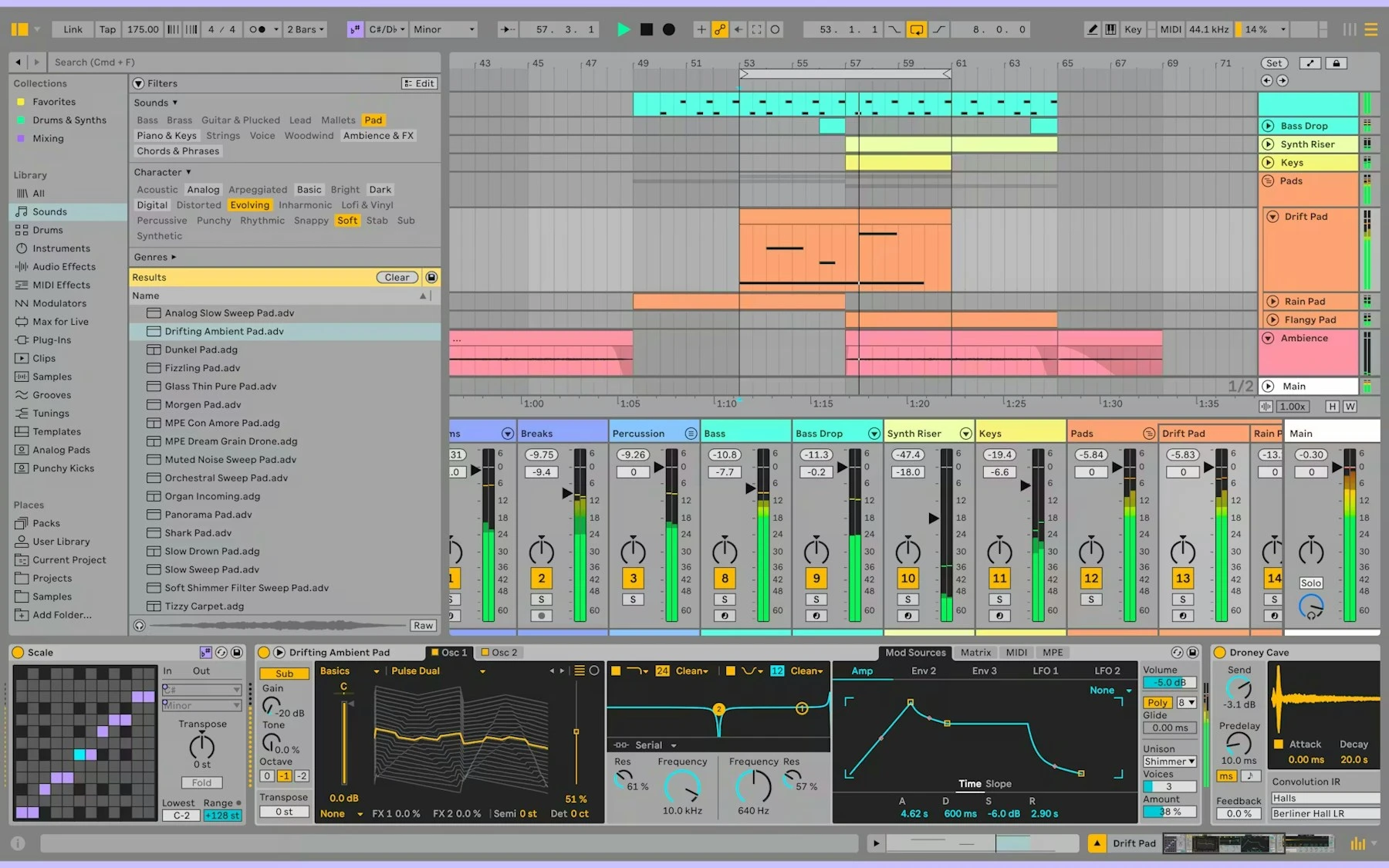
Return to the same Live set
Inspect the arrangement, check a track or device setting, or look at the mixer in the set already open on your Mac. Your samples, instruments, and desktop plug-ins stay in that session.
- Inspect the arrangement and tracks
- Review devices and desktop plug-in controls
- Check mixer settings in your current set
Use Ableton Live on iPad
An iPad provides more room for the arrangement, mixer, and device controls in your Mac’s Live set. Samples and plug-ins stay loaded on the Mac. Use remote access for checks and small adjustments rather than timing-sensitive performance.
How to get Ableton Live on your iPhone or iPad
- Open Ableton Live on your Mac and install the free Apperture Mac host.
- Get Apperture on your iPhone or iPad, then pair with your Mac using its QR code.
- Connect to your Mac and choose the Ableton Live window. Use landscape orientation for more room.
Keep your Mac awake and on a network your iPhone or iPad can reach. Start on the same local network; for access away from home, see the Tailscale setup guide.
Can I use Ableton Live on my iPhone or iPad with Apperture?
Yes — by streaming Ableton Live from your Mac with Apperture. The desktop app runs on your Mac; your iPhone or iPad displays its window and sends remote input back. You need a reachable, awake Mac with Ableton Live installed, the free Apperture Mac host, and the Apperture app on your iPhone or iPad.
Apperture streams the Mac interface rather than running Live on your phone. Use it for remote checks and small adjustments; timing-sensitive performance and recording are better handled directly on your Mac. Ableton’s Live overview.
Ableton Live is a trademark of its owner. Apperture is an independent app and is not affiliated with or endorsed by Ableton Live's developer.